Watch a live meeting
Follow a teammate's meeting while it is still happening.
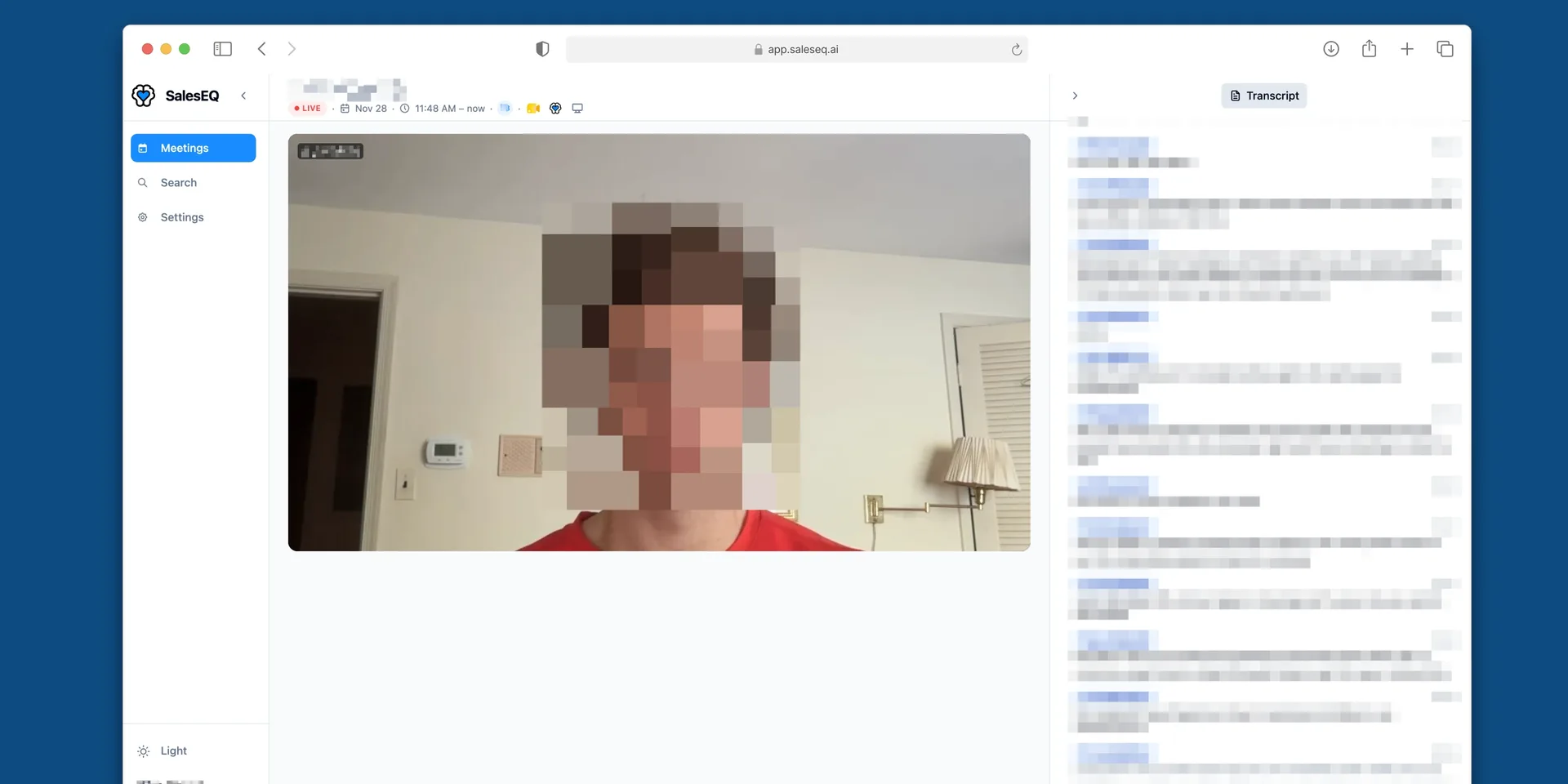
When a teammate records a meeting with the desktop app, you can watch it from the web app while it is still going. Use it to coach a rep through a hard call, follow a deal you care about, or catch up on a meeting you could not join.
Who can watch
The person recording can always watch their own meeting. Other members of your organization can watch when either of these is true:
- They are on the meeting's calendar invite.
- An Always auto-share rule shares the recorder's meetings with them, directly or through one of their groups. See Auto-share rules.
Access is decided when the recording starts, so the right people can watch from the first minute.
Open a live meeting
Go to All meetings
Open Meetings in the web app and select All meetings. Meetings you can watch sit at the top of the list, marked LIVE, with how long they have been running.
Open the meeting
Select it. The meeting opens with the recording on the left and the transcript on the right.
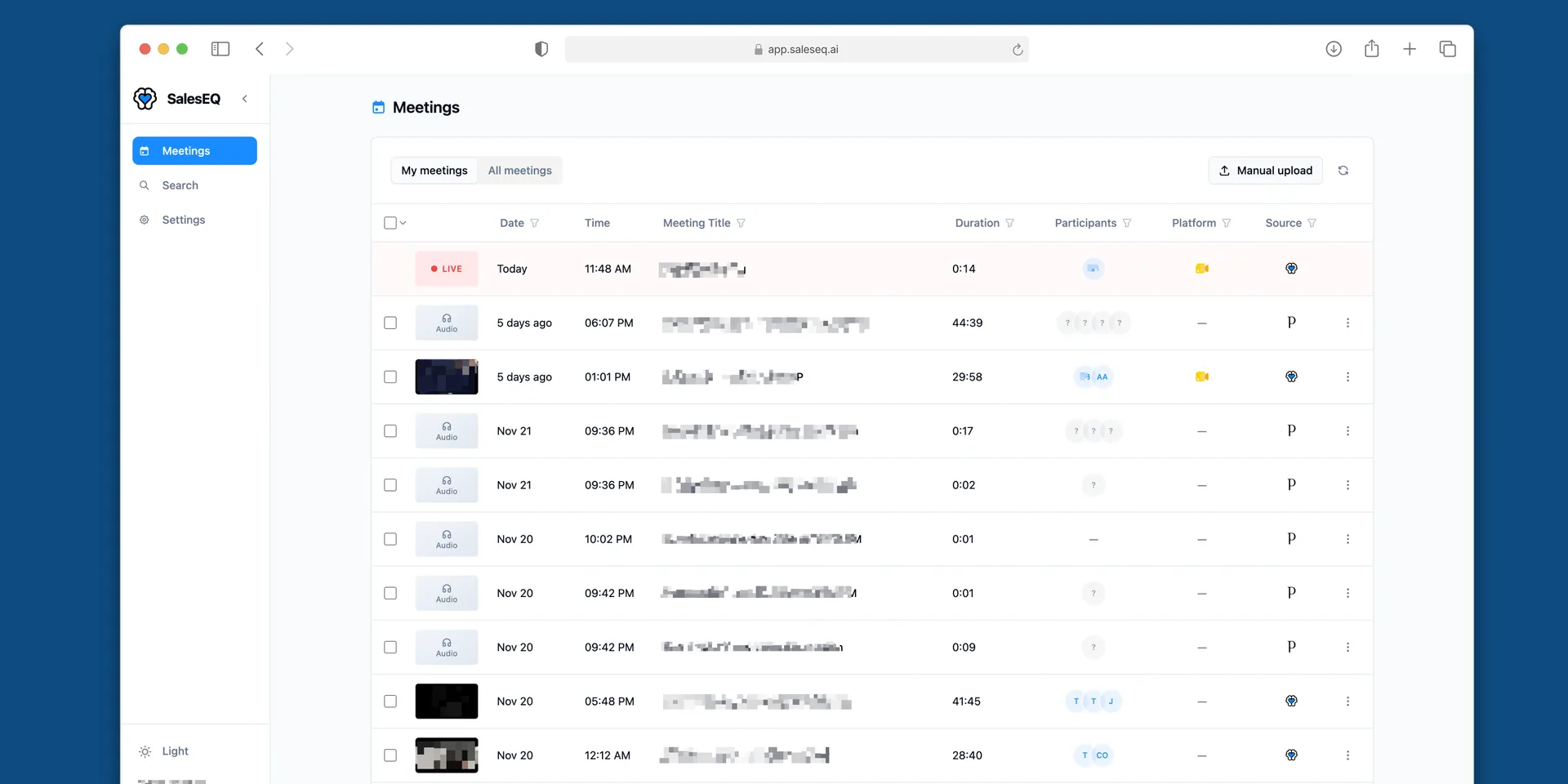
What you see
- The recording. You hear the meeting as it happens. When the desktop app captures video, you see the participants' cameras and any screen being shared.
- The transcript. Each line appears as people speak, with the speaker's name.
- Captions. Turn on captions in the player to read along over the video.
Use the player to pause, turn captions on or off, or go full screen.
When the meeting ends
The page stays open and marks the meeting ENDED. Once it finishes processing, the full meeting, with its summary and insights, appears in Meetings for the recorder and everyone it is shared with. See Viewing a meeting and Share a meeting.
Next
- Auto-share rules decide who sees a teammate's meetings, live and finished.
- Live AI is what the person recording sees during their own meeting.