Auto-share rules
Share meetings the moment they finish, without doing it by hand.
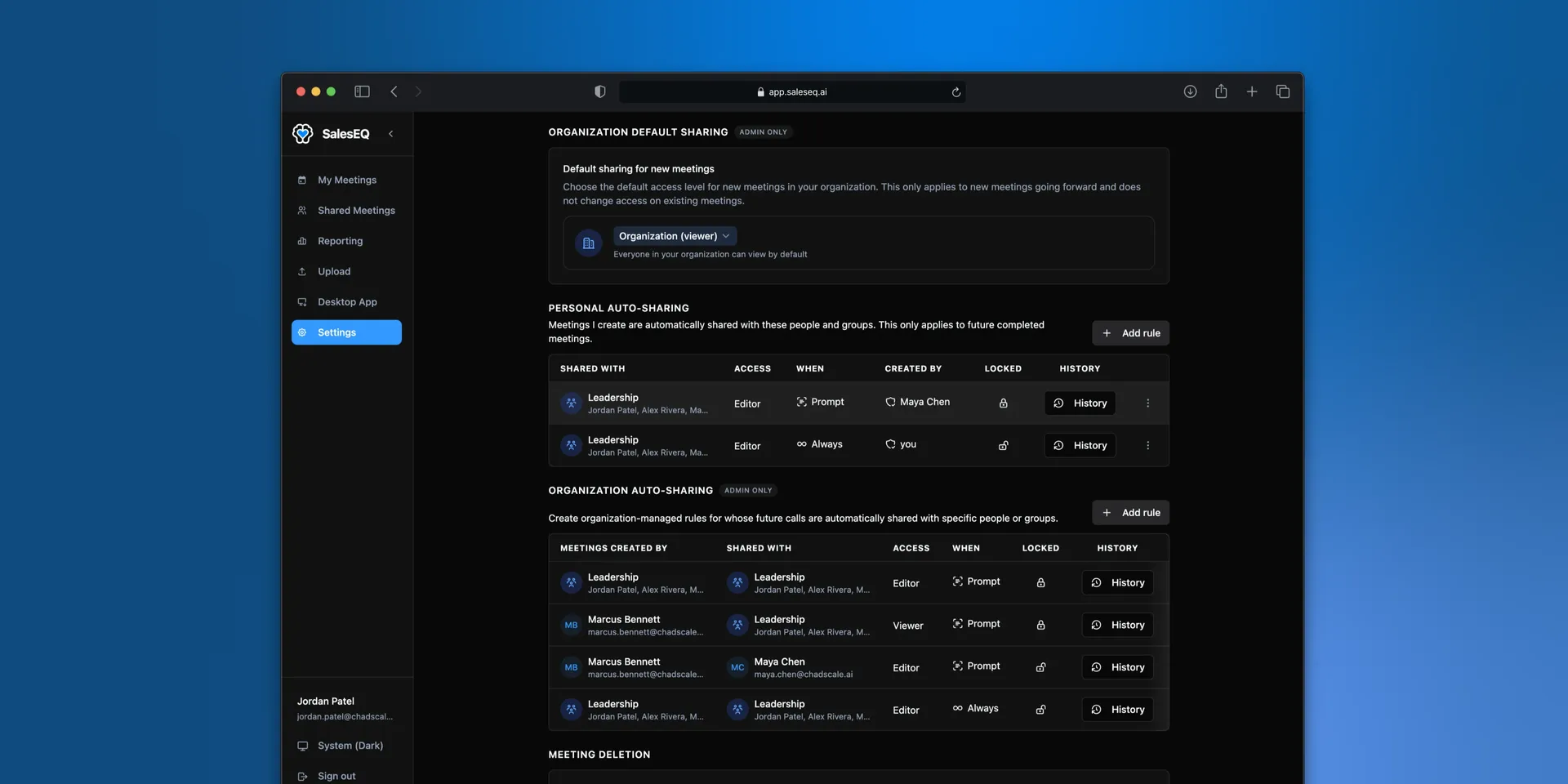
An auto-share rule shares new meetings as they arrive. Describe which meetings should be shared and with whom, and SalesEQ evaluates each new recording against your rules.
This is what stops sharing from depending on somebody remembering.
Two kinds of rule
An Always rule shares every meeting from its source. Use one when a person or a team should see everything, such as a manager who reviews their reps.
A Prompt rule carries a condition in plain language, and SalesEQ reads each meeting to decide whether it holds. Use one when only some meetings should travel, such as the meetings where a particular subject comes up.
When is where you pick, both in the rule itself and as a column in the settings list.
Both kinds grant the same roles and both apply only to new meetings. The difference is whether SalesEQ has a decision to make.
Personal and organization rules
Settings holds two lists of rules, and what separates them is whose meetings a rule is allowed to act on.
Personal auto-sharing is yours. Every rule here shares meetings you record, with people you choose. Any member can create one, and the rule has no source field because the source is always you.
Organization auto-sharing is admin-only, and it adds Calls created by. An admin picks whose meetings the rule watches, so a rule can route someone else's meetings to someone else again. This is how "every rep shares with their manager" or "everyone on a pod shares with the pod" gets set up once, rather than asked of each person and forgotten.
An admin can also lock a rule. A locked rule cannot be edited or removed by the people whose meetings it shares, which is what makes it a guarantee rather than a suggestion.
Create a rule
Open sharing settings
Go to Personal Auto-Sharing. Admins can find Organization Auto-Sharing directly below it.
Choose whose meetings
Organization rules only. Under Calls created by, pick the person or group whose meetings the rule watches. A personal rule skips this, because it always watches yours.
Choose who gets access
Under People and groups with auto-share, add the people or groups that receive the meeting. Each one gets viewer or editor, the same roles as sharing by hand.
Choose when it fires
When is either Always or If prompt matches. Choosing If prompt matches reveals a Prompt box, and what you write there is the condition SalesEQ checks against each meeting.
A rule, read out loud
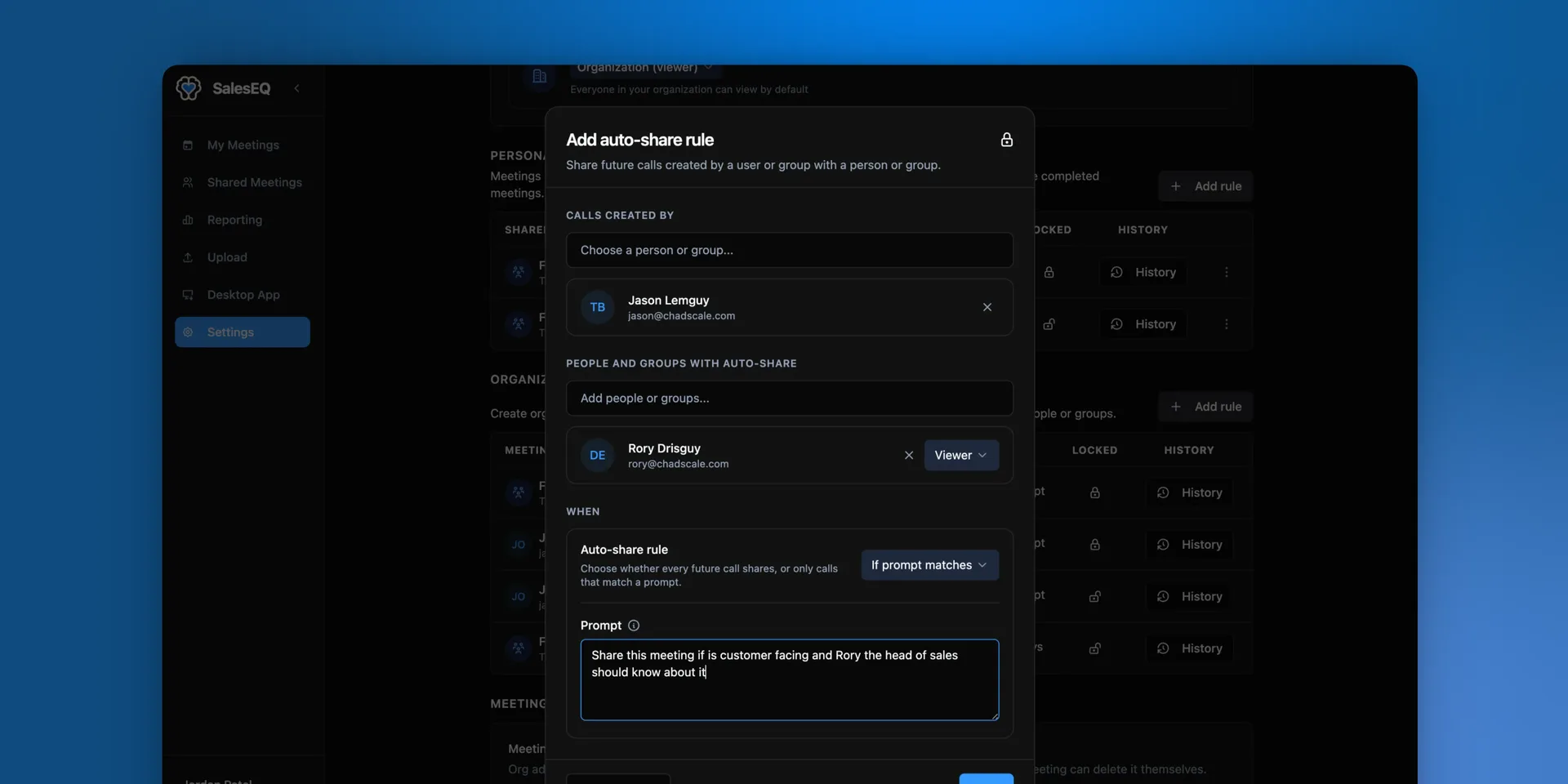
That rule watches Jason's meetings and shares them with Rory as a viewer. It shares only the ones where the prompt holds: the meeting is customer facing and worth the head of sales seeing. Jason records, Rory receives, and neither of them does anything.
Test a rule before you save it
Test rule runs the rule against meetings you already have and shows what it would have done with each one.
Testing applies to Prompt rules only. An Always rule has no decision to test, so the button stays disabled until When is set to If prompt matches and a prompt is written.
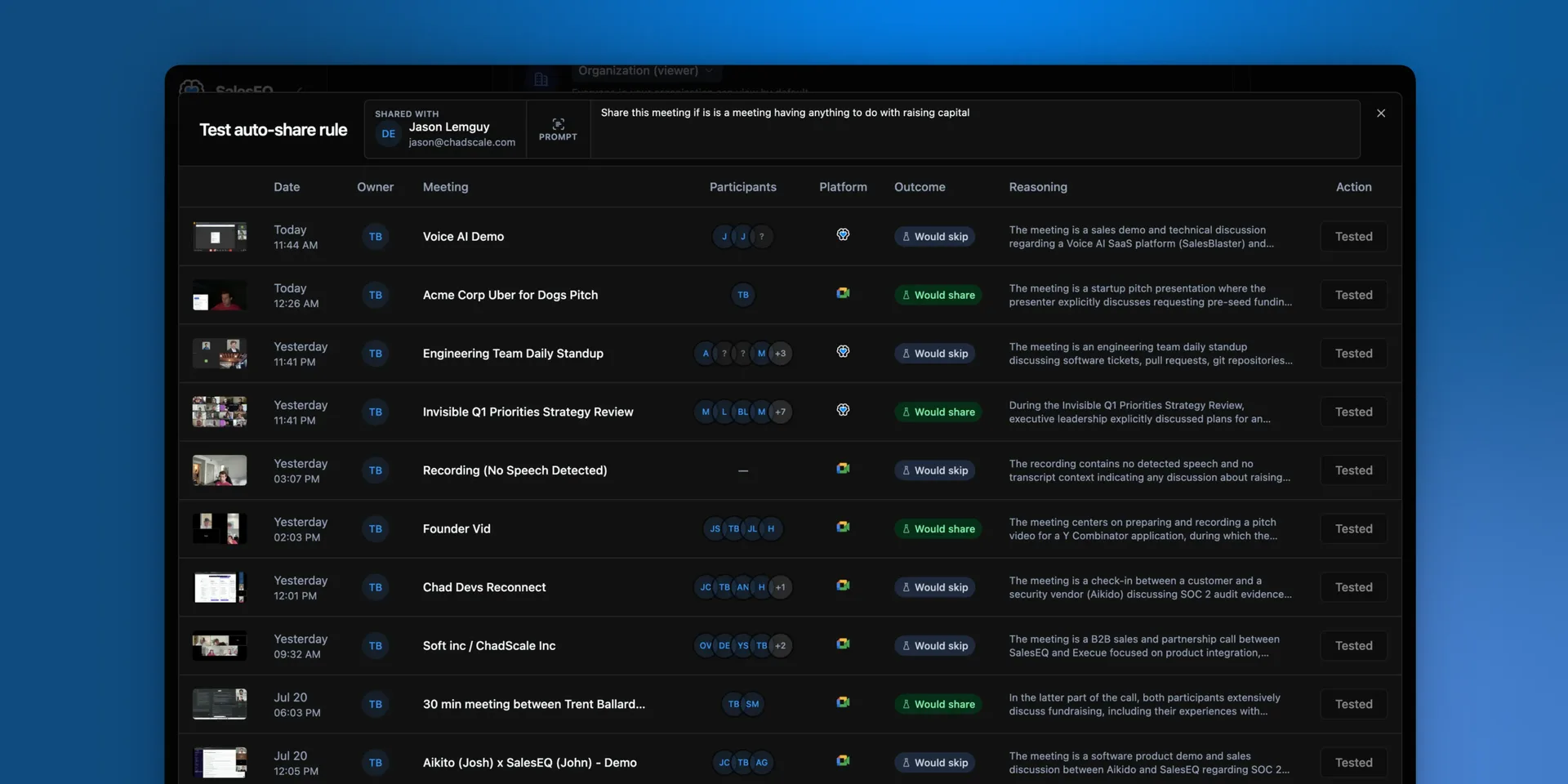
Every meeting gets Would share or Would skip, with the reasoning next to it. This is the fastest way to find out a prompt is broader than you meant, and it costs nothing, because testing shares no meetings.
Verify it worked
Record a meeting that should match. When it finishes processing, open its share settings and confirm the rule granted access.
Each rule keeps a History of why it shared a meeting, so you can read its reasoning rather than guessing.
What a prompt can use
A prompt is evaluated against the whole meeting: the recording, the transcript, the title, the platform, the participants and speakers, and the calendar attendees.
A prompt can therefore act on the content of a conversation, not only on who attended it.
A founder keeping the head of sales in the loop. The rule shares with the head of sales, and the prompt decides which meetings are worth their attention:
Share this meeting if the customer raises a pricing objection, pushes back on contract terms, or sounds at risk of leaving.A customer success team feeding product signal to the people building it. The rule shares with the engineering group that owns the area:
Share this meeting if the customer gives feedback about meeting search.Neither decision can be made from an attendee list. That is the reason prompts exist.
A prompt never names who receives the meeting. That comes from People and groups with auto-share, so the prompt only has to decide whether the meeting qualifies.
When a rule runs
A rule is evaluated once per meeting, as that meeting finishes processing. That is the only time it ever runs.
Everything else follows from that:
- A new rule starts from the next meeting. It cannot reach back over what you have already recorded, so share those by hand.
- An edited rule takes effect the same way. Whatever it shared before the edit keeps the access it was given.
- A rule you turn off or delete stops running, but takes nothing back. Those shares were granted at the time and now stand on their own. To undo one, remove the share on the meeting.
Imported and transferred meetings
An imported meeting counts as new when it finishes processing, so rules run on it once, as its recorder's meeting:
- The recorder is a member. Their personal rules run, along with any organization rules that watch them.
- No recorder matched. No rules run, and the meeting stays private to whoever imported it. Rules do not run later when the meeting moves to its recorder, so share it by hand if it needs to reach anyone.
A transferred meeting never runs the new owner's rules. The shares it already had stay as they were.
Next
- Groups covers what most rules point at.
- Share a meeting covers sharing a single meeting.