Groups
Share with a team instead of a list of names.
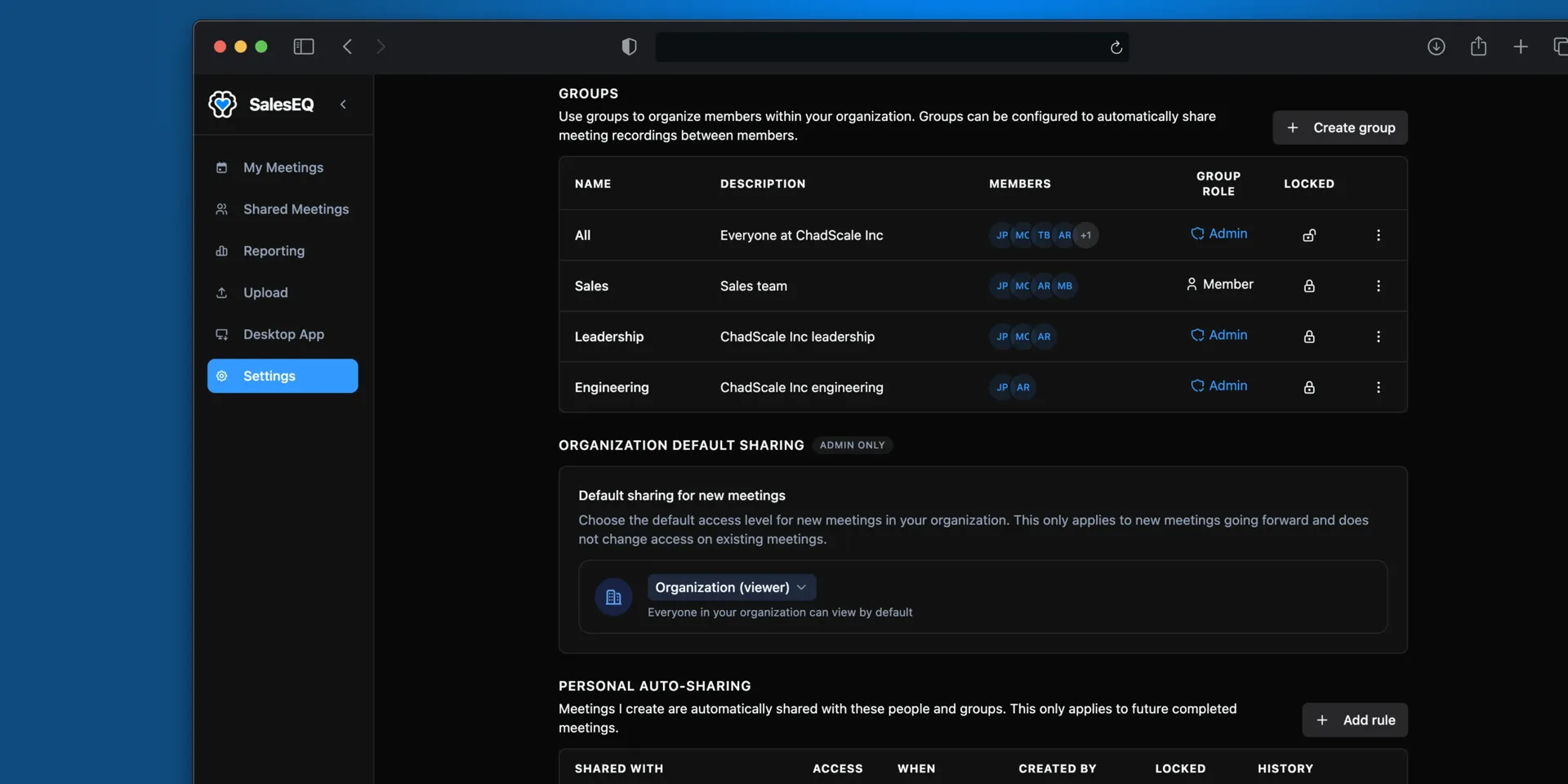
A group is a named set of people in your organization: a team, a region, a pod, a department. Share a meeting with the group and everyone in it gets access, including anyone added to the group later.
That last part is the reason to use groups. Share with five people by name and a new hire sees none of it. Share with the AE group and they see all of it on their first day.
Groups are not only for the people running the meetings. Engineering, support, and product all have a standing reason to hear certain conversations, and a group is how those meetings reach them without anyone forwarding links.
Create a group
Open settings
Go to Groups.
Create the group and name it
Name it after how your team actually talks: AEs, Enterprise, West Pod, Leadership, Engineering,
Support.
Add members
Add people from your organization. Someone can belong to as many groups as you need.
Verify it worked
Share a meeting with the group. The share settings show everyone who now has access through it.
Groups worth creating
- A group per team covers day-to-day sharing between reps who work the same deals.
- A leadership group is what auto-share rules usually point at.
- A group per segment works when reps specialize, so enterprise meetings reach enterprise people.
- A group per function outside sales gets the conversation to the people who act on it. Engineering hears the meetings where a bug or an integration comes up, support hears the escalations, product hears the feature requests.
Resist creating a group per deal. Groups are for sets of people that outlive any one meeting.
Removing someone
Removing a person from a group removes the access they had through it. Access you granted them individually stays, because that is a separate grant.
Next
- Share a meeting covers the sharing itself.
- Auto-share rules covers pointing rules at a group.