Import meetings
Bring past meetings in from the tool you recorded them with.
If your team recorded meetings with another tool before SalesEQ, import them instead of downloading and uploading each file. Imported meetings become full SalesEQ meetings. They are transcribed, analyzed, searchable, and shareable like anything the desktop app records.
The tools you can import from are listed under Meeting imports in Settings. A tool marked Coming soon is not available yet.
This page covers meetings that already happened. To bring in new meetings as they finish, turn on Automatic imports.
Before you start
- An active plan or trial. Importing is part of a paid plan.
- An account on the tool you are importing from. You can import any recording that account can open, including recordings teammates shared with it.
Any member can import. You do not need to be an admin.
Connect the tool
Open Meeting imports
Go to Meeting imports in Settings.
Choose the tool
Select it from the grid. Depending on the tool, you either sign in to it or paste an API key you create in that tool's settings. When a tool needs a key, the connect dialog links to the page where you create it.
SalesEQ checks your credentials with the tool before saving them.
Confirm it connected
The connection appears at the top of the section, marked Connected.
A connection belongs to you. Other members, admins included, cannot see its key or import through it. If you have several accounts on the same tool, connect each one.
Import past meetings
Open the connection
Select Manage imports on the connection. Under Past meetings, a table lists the recordings that account can open.
Choose the meetings
Select the checkbox on each meeting you want. The checkbox in the header row selects the current page, every loaded meeting, or every meeting matching your filters.
Filter the table to narrow a long list, such as to one person's meetings or a date range. Which filters appear depends on what the tool lets SalesEQ search.
Review the import
Select Review import. The review lists every meeting you chose and estimates how long the import takes. One import holds up to 500 meetings, so bring a large backlog across in several imports.
Start it
Select Start import. You can close the window straight away. The import runs in the background.
Verify it worked
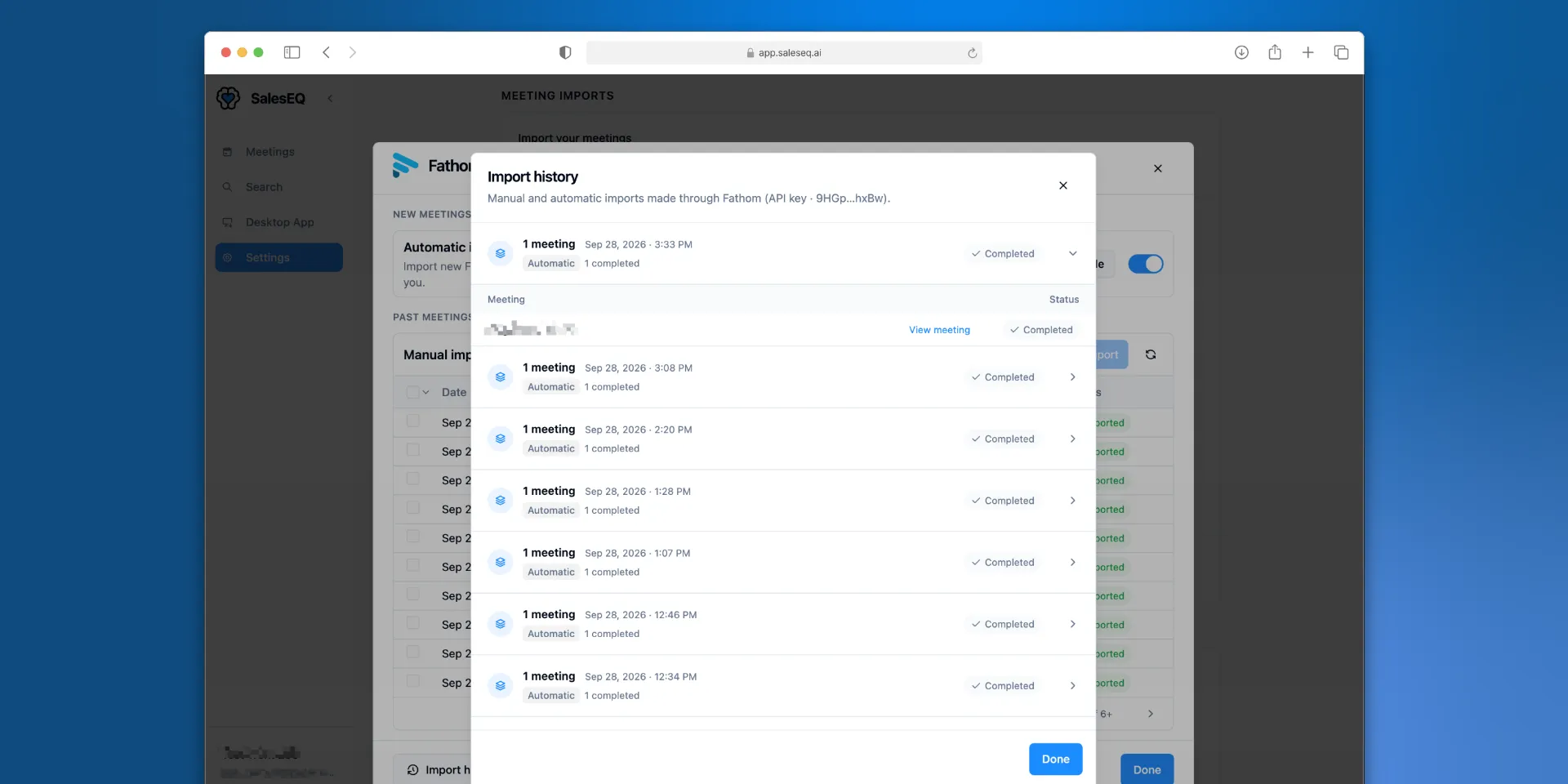
Select Import history in the same dialog. Each import shows its progress, and expanding it lists every meeting with its own status. A finished meeting has a View meeting link.
Imported meetings also appear on the Meetings page. Each one keeps its original date, and its source icon shows which tool it came from.
What SalesEQ does with an imported meeting
SalesEQ downloads the recording and processes it like a meeting it recorded itself. It writes its own transcript, so search, Ask AI, playback, and insights work the same way. When the original tool labels its speakers, SalesEQ uses those labels to help name them.
Who owns it
The original tool records who captured each meeting. SalesEQ uses that to pick the owner:
- The recorder is a member of your organization. If their email matches a verified member, that member owns the meeting.
- The recorder is not a member yet. You own the meeting for now. When the recorder joins your organization and verifies their email, the meeting moves to them on its own.
Either way, you keep editor access to every meeting you import for as long as you stay a member.
Transfer ownership to change the owner yourself. A transfer is final. Once you transfer a meeting, it no longer moves to its recorder when they join.
Who can see it
A meeting that goes to its recorder runs their Auto-share rules, plus any organization rules that apply, the same way a new recording does. A meeting you hold because no recorder matched skips Auto-share rules and the organization default sharing, so only you can see it until you share it. When it later moves to its recorder, their rules do not run either.
Sharing on an imported meeting works like on any other meeting. Change it whenever you want.
Meetings that are already in SalesEQ
A recording is imported once per organization, whoever brings it in. The Status column tells you where each one stands:
| Status | What it means |
|---|---|
| Not imported | Ready to import. |
| Imported | Already in SalesEQ, brought in by you or a teammate. Ask its owner to share it if you cannot open it. |
| Processing | Being imported now. |
| Needs retry | The last attempt failed. Select it to try again. |
| Cancelled | Its import was stopped before it finished. Select it to try again. |
| Previously deleted | Deleted in SalesEQ after it was imported. It never comes back on its own. Select it to import it again. |
| Unavailable | The tool reports no recording to import. |
Deleting an imported meeting in SalesEQ does not delete it from the tool it came from.
Stop or retry an import
Open Import history and select Stop import on a running import. Meetings that already finished stay in SalesEQ, and meetings that are partway through processing may still finish. The rest are not imported.
Expand an import and select Retry on a failed meeting to queue it again. If many meetings fail at once, the connection has usually lost access. Select Update API key or Reconnect on the connection, then retry.
Disconnect
Select Disconnect on the connection. SalesEQ removes your saved credentials and stops Automatic imports for that account. Meetings you already imported stay.
If someone imported your meetings for you
A teammate or the SalesEQ team sometimes imports a backlog before you join. You have nothing to set up. Meetings you recorded appear in My meetings once you join with the email you recorded them under and verify it, or as soon as someone transfers them to you.
Next
- Automatic imports covers bringing in new meetings as they finish.
- Transfer ownership covers handing imported meetings to the right people.
- Upload a recording covers a single file from somewhere without an import.