Recording rules
Decide in advance which meetings SalesEQ records, for you or for everyone.
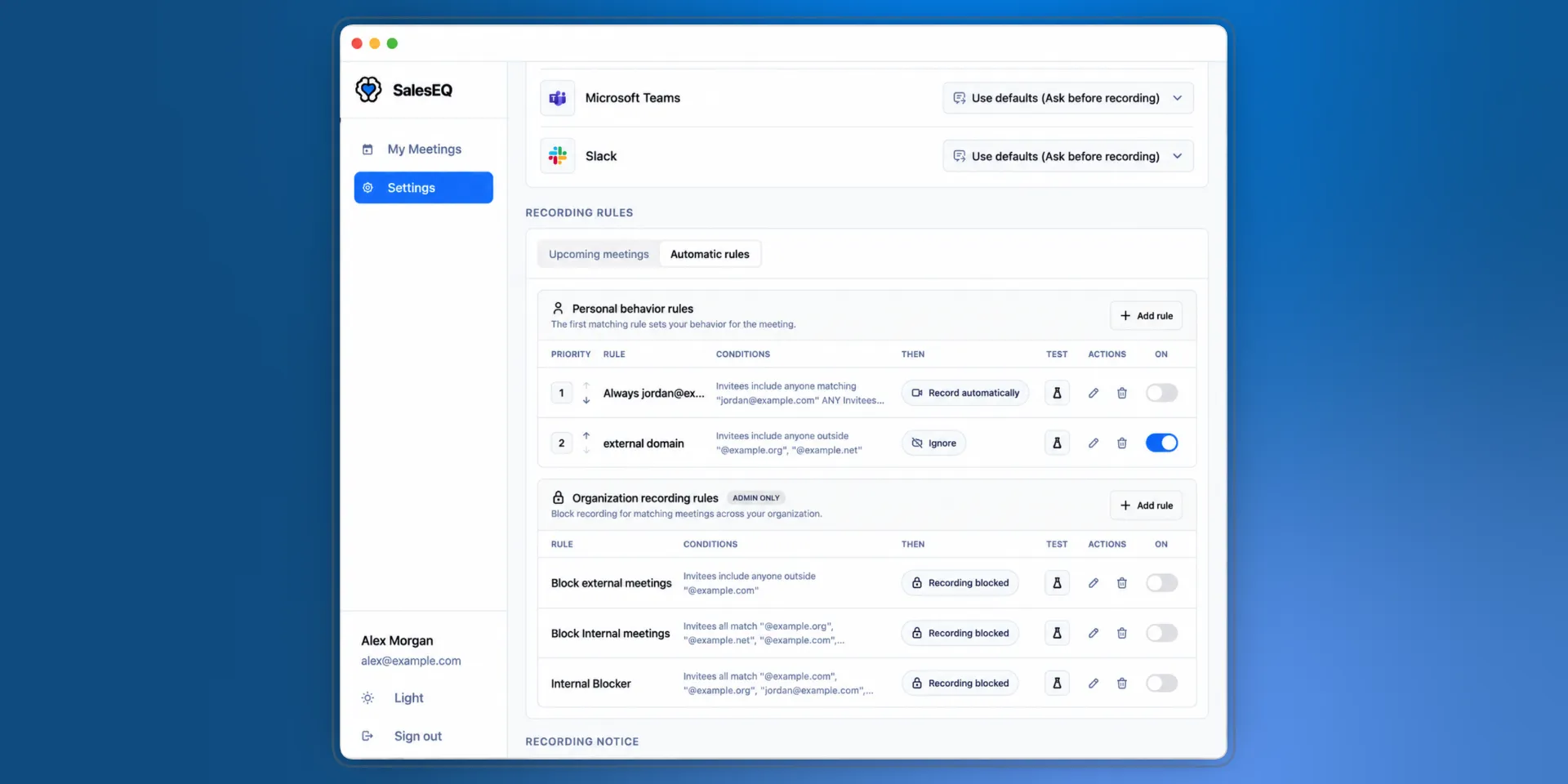
Your default recording behavior applies to every meeting SalesEQ detects. Recording rules are how you depart from it: for one meeting, or for every meeting that looks a certain way.
Find them in the desktop app under Settings, in the Recording Rules section. It has two tabs. Upcoming meetings lists what is on your calendar and lets you set any one of them. Automatic rules holds the rules that decide for you.
Two separate decisions
A meeting gets recorded when two things agree, and they are set by different people.
Personal recording is yours. It says what you want to happen when SalesEQ detects the meeting.
| Behavior | What happens when SalesEQ detects the meeting |
|---|---|
| Record automatically | Recording starts on its own. |
| Ask before recording | You get a notification, and a Record button in the desktop app. |
| Show in SalesEQ only | The meeting appears in the desktop app. No notification. |
| Ignore | No recording and no prompt. |
Organization recording policy is the admin's, and it is a gate rather than a preference:
| Policy | What it does |
|---|---|
| Allow recording | Members use their own recording behavior. |
| Block recording | Nobody in the organization records the meeting, whatever they prefer. |
A block wins. When an admin blocks a meeting, your behavior still shows in the table, and it does not run.
Automatic rules
An automatic rule matches meetings by what is on the calendar invitation, then applies a behavior or a policy to everything that matches.
The Automatic rules tab holds two lists:
Personal behavior rules set your behavior. They are ordered, and the first matching rule wins, so put the specific ones above the general ones. Any member can create one.
Organization recording rules block recording across the organization. They are admin-only, and any matching rule blocks, so order does not change the outcome.
What a rule can match on
Each condition takes a field, an operator, and a value:
| Field | Matches against | Operators |
|---|---|---|
| Meeting title | The title on the calendar event. | contains, does not contain, equals, matches regex |
| Organizer email | Whoever organized the meeting. | contains, does not contain, equals, matches regex |
| Invitees | The email addresses invited, by address or by domain. | include anyone matching, include no one matching, all match, include anyone outside |
| Calendar connection | Which connected calendar the meeting came from. | is, is not |
Invitees work differently from the other fields, because the interesting questions are about the group rather than about one address.
Calendar connection is available on your own rules only. An organization rule cannot match on somebody else's connected calendar, so it has the other three fields.
Include anyone outside is the one worth knowing. Give it your own domain and the rule matches any meeting with someone external on it, which is the usual way to separate customer meetings from internal ones.
A rule holds up to 20 conditions and matches when all of them hold or when any of them does.
Create a rule
Open the Automatic rules tab
In the desktop app, go to Settings, find Recording Rules, and select Automatic rules.
Add a rule to the list you want
Select Add rule on Personal behavior rules to set your own behavior, or on Organization recording rules to block recording for everyone. The second is available to admins.
Name it and add conditions
Give the rule a name you will recognize later, such as Candidate interviews. Add conditions, and choose whether all of them or any of them has to hold.
Choose what it does
A personal rule picks one of the four behaviors. An organization rule blocks recording.
Test it before you rely on it
Select Test rule. SalesEQ runs it against your upcoming meetings and marks each one Matches or Doesn't match, so you find out the rule is broader than you meant without recording anything.
Order matters for your rules, not the organization's
Move a personal rule up or down to change which one wins. A meeting that matches both an interviews rule and a customers rule takes whichever sits higher.
Organization rules do not work this way. Any matching block is a block, so there is nothing for order to decide.
Set one meeting
The Upcoming meetings tab lists what is on your calendar, with Personal recording on every row and Organization recording policy alongside it for admins.
Change either one and it applies to that meeting alone. Recurring meetings are not covered: setting one occurrence leaves the rest of the series on whatever your rules say.
Both columns start at Follow rules or Follow policy, which shows the value your rules produced in parentheses. Picking anything else overrides them for that meeting. Returning to Follow rules removes the override.
What the recorder will do is the last column, and it is the one to read. It resolves everything above it into what actually happens, including which rule decided and whether an organization block is overriding what you chose.
Change several meetings at once
Selecting meetings in the Upcoming meetings tab reveals a toolbar above the table.
Select the meetings
Use the checkbox on each row, or the one in the header to take the whole list.
Choose what to change
The toolbar offers Your recording behavior and, for admins, Organization recording policy.
Apply
Pick a value and select Apply to the selected meetings. Meetings that cannot take the change are skipped and reported rather than failing the batch.
Up to 100 meetings go in one batch. The Live AI section has its own toolbar for checklists, quick actions, and Live AI policy, covered in Live AI rules.
Verify it worked
Open the Upcoming meetings tab and read What the recorder will do on a meeting your rule should match. It names the rule that decided.
For a rule set to Record automatically, join the meeting: the control bar appears on its own and shows a running timer.
When a change takes effect
Rules are evaluated for each meeting as it is detected, so a change applies to meetings that have not started.
A rule you turn off or delete stops applying to upcoming meetings. It does not reach back: recordings you already have stay where they are. To get rid of one of those, see Delete and discard.
A change made on the web reaches the desktop app on its next refresh rather than instantly.
Next
- Live AI rules does the same thing for Live AI, checklists, and quick actions.
- Automatic recording covers the default that rules depart from.
- Recording notice tells people a recording started.