Automatic imports
Bring new meetings in from another tool as soon as they finish.
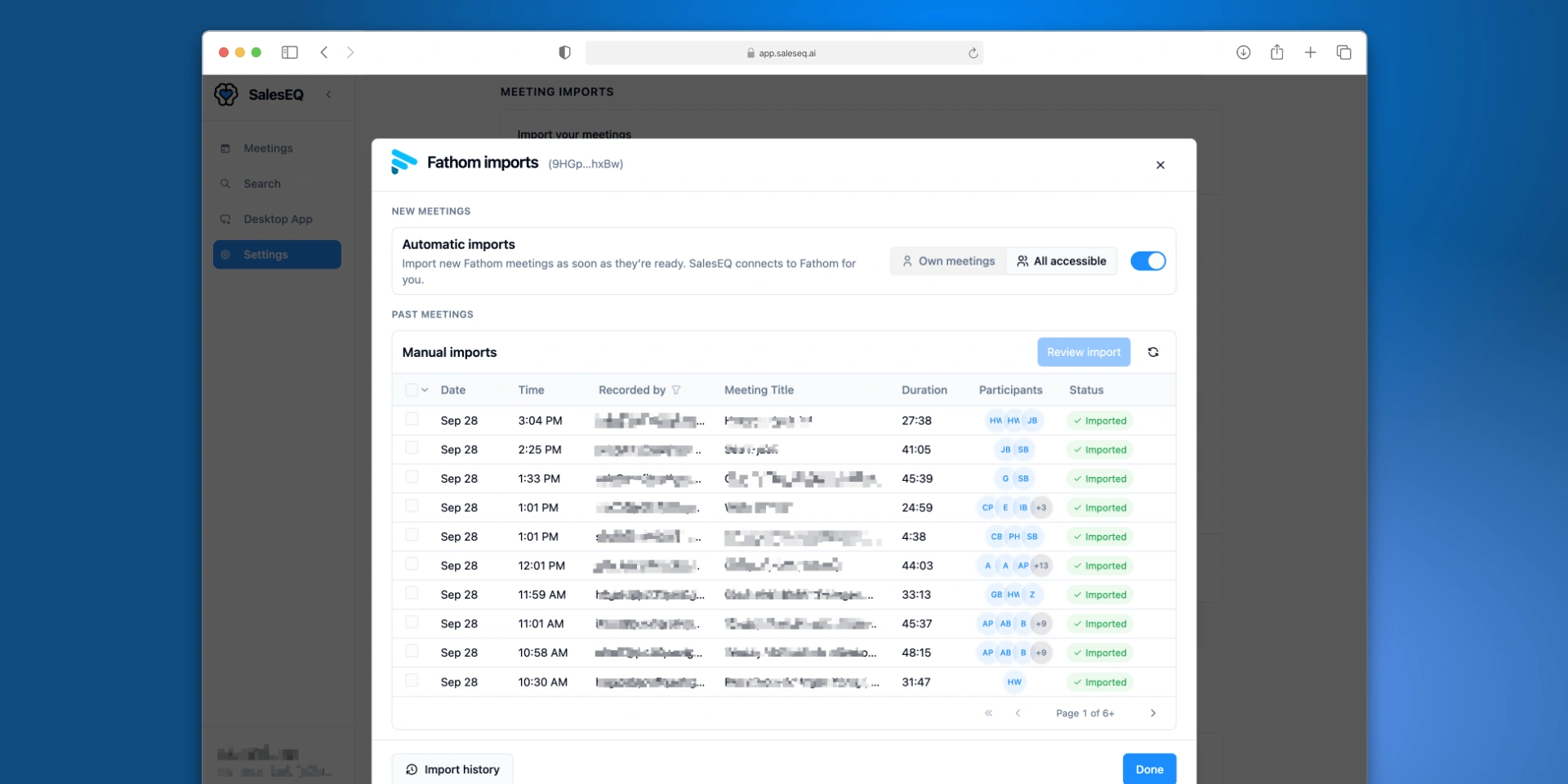
Automatic imports keep SalesEQ in step with another tool your team still records in. Each time that tool finishes a meeting, SalesEQ imports it. Nobody has to remember to do it.
Turn it on per connection. Past meetings are a separate job: Import meetings covers bringing in a backlog, and you can do both on the same connection.
How it works
When you turn on automatic imports, SalesEQ registers a webhook with the tool through your connection. A webhook is a notification the tool sends each time a meeting is ready. You never copy a URL or a secret, because SalesEQ creates and removes the webhook for you.
When a notification arrives, SalesEQ imports that meeting the same way as a manual import:
- The recorder owns it when their email matches a verified member of your organization. Otherwise the owner of the connection holds it until the recorder joins. Who owns it covers this in full.
- Auto-share rules run when the meeting goes to its recorder, the same as for a new recording.
- Everything stays editable. Change the owner, the sharing, the title, or the speaker names after the meeting arrives, the same as on any other meeting.
A meeting that is already in SalesEQ, or one someone deleted, is never imported twice.
Turn it on
Open the connection
Go to Meeting imports in Settings and select Manage imports on the connection. Connect the tool first if you have not.
Choose which meetings to import
Under New meetings, choose what the connection imports:
| Choice | What it imports |
|---|---|
| Own meetings | Meetings recorded by the connected account. This is the default. |
| All accessible | Also meetings that teammates or outside users shared with the connected account. |
Pick All accessible when one account can see a whole team's recordings and you want all of them in SalesEQ.
Turn on Automatic imports
Turn on Automatic imports. SalesEQ sets up the webhook, which takes a few seconds.
Automatic imports run only while your organization has an active plan or trial.
Verify it worked
Record a short meeting in the tool you connected. Once that tool finishes processing it, open Import history from Manage imports. The meeting appears there as an import marked Automatic, and then on the Meetings page.
Change which meetings import
Switch between Own meetings and All accessible while automatic imports are on. SalesEQ replaces the webhook after a few seconds. A meeting that finishes during that switch is not imported, so bring it in from Past meetings.
When something goes wrong
The connection shows Disconnected, or the dialog says access has expired. The tool stopped accepting your credentials, so nothing new imports. Select Update API key or Reconnect on the connection. Then import anything you missed from Past meetings.
SalesEQ could not confirm the webhook was removed. This can happen after you turn automatic imports off or disconnect. The dialog shows the webhook's address. Open the tool's API or webhook settings, delete the webhook with that address, then confirm in SalesEQ that you removed it. Until you do, you cannot turn automatic imports back on or replace the connection's credentials.
Automatic imports are still being updated. Setup or cleanup is in progress. Wait a minute and try again.
Turn it off
Turn off Automatic imports on the connection. New meetings stop importing straight away, and meetings already imported stay in SalesEQ. Past-meeting imports keep working.
Disconnecting the connection turns off automatic imports too. Reconnecting later does not turn them back on.
When someone leaves your organization, SalesEQ disconnects their connections and removes their webhooks. The meetings they imported stay.
Next
- Import meetings covers past meetings, import history, and duplicates.
- Auto-share rules covers who sees imported meetings as they arrive.
- Transfer ownership covers changing who owns an imported meeting.