Overview
The window over a running meeting, and what each of its three tabs does.
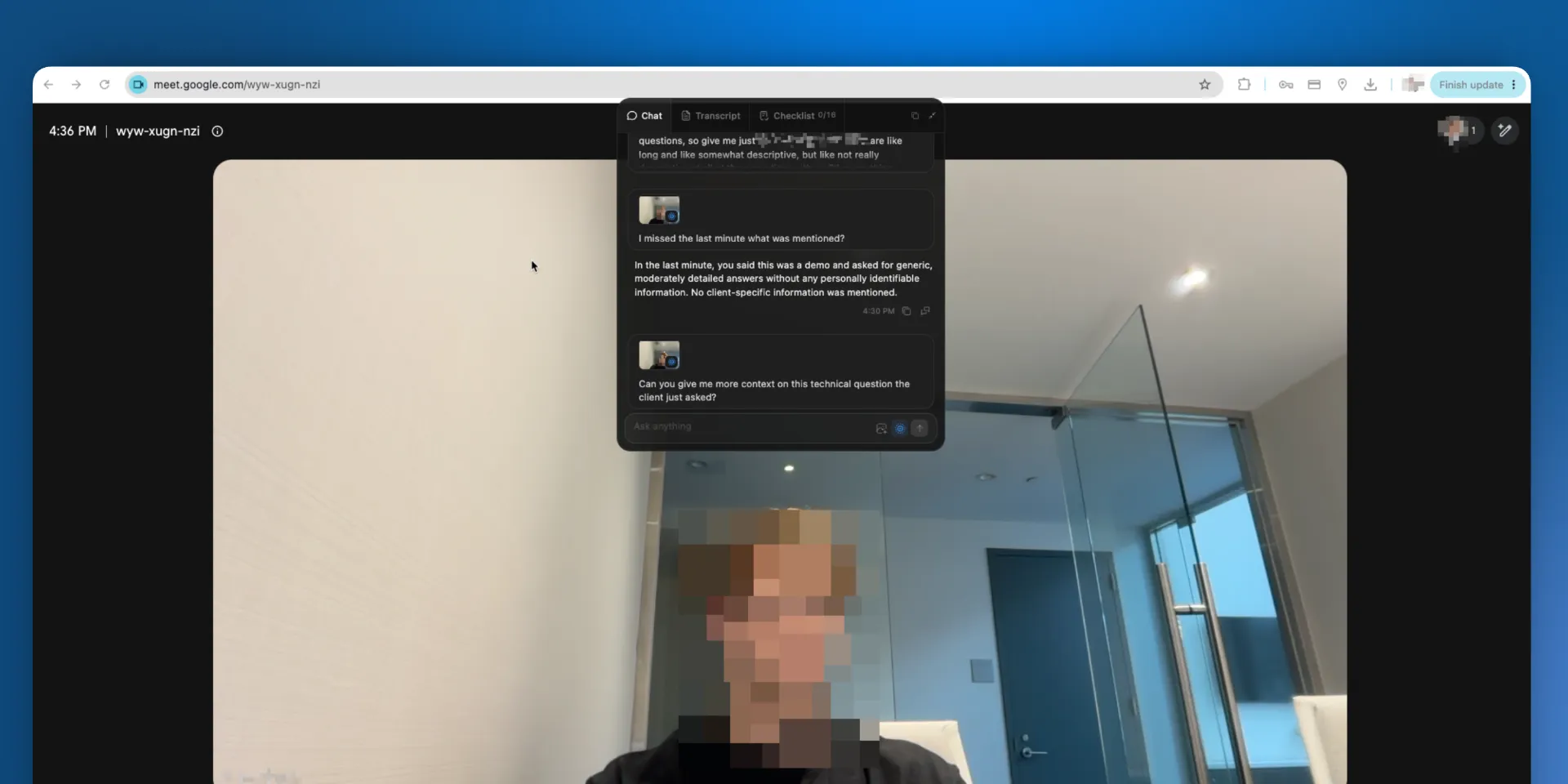
Live AI is a window that sits over your meeting while the meeting is running. It transcribes as people talk, answers questions about what has been said, and tracks whether you have covered what you meant to cover.
Everything else in SalesEQ works on a meeting once it has finished. Live AI works on the meeting you are still in.
Turning it on and off
Live AI is on by default. Start a recording and the window opens over your meeting.
The switch is Start Live AI by default, under Live AI in the desktop app's Settings. Turn it off to record without the window, and the recording itself is unaffected either way. A change applies to your next meeting rather than the one you are in.
That switch is the fallback. A rule, a setting on the meeting itself, or your organization's policy can all decide instead, and Live AI rules covers which one wins.
Two cases are worth knowing now. Your organization can require Live AI, which starts it whatever your switch says. It can also block Live AI, which is the one setting that stops you opening the window by hand mid-meeting.
The three tabs
Chat
Ask about the meeting, or the web.
Transcript
Follow the words and the events.
Checklist
Track the objectives you set.
The tabs are not exclusive. Each one opens and closes on its own, so you can run all three side by side, or any two of them. The window widens to fit what you have open, and selecting an open tab closes it again.
Reading the transcript while Chat answers is the case this exists for, along with watching Checklist move while you talk.
Moving, sizing, and minimizing
Drag the window anywhere on screen. It snaps to eight positions around the edges of your display, and it remembers where you left it for next time. The tab strip moves to the top or the bottom of the window depending on where you snap it, so it always sits nearest the edge.
To make the window bigger or smaller, select it and press Cmd with + or - (Ctrl on Windows). Five steps run from 90% to 150%, Cmd 0 returns it to 100%, and a readout shows the scale as it changes. Everything scales together, so a larger window means larger text rather than more content.
Minimize collapses the window to its tab strip. The strip still shows the checklist count, and it still drags around. Restore it and the tabs you had open come back. Closing every tab collapses the window the same way, and selecting any tab in the strip opens it again.
Keeping it off a screen share
Hide Live AI from screen sharing is on by default, under Live AI in Settings. It keeps the window out of supported screen shares, so the people you are meeting with do not see what you are asking.
Some macOS capture methods still show it. Treat the setting as a strong default rather than a guarantee, and check your own share once if it matters to you.
Save anything you want to keep
Live AI stops with the recording, and nothing it produced is kept. The chat, the checklist assessments, and the live transcript are all discarded when the meeting closes. None of it attaches to the finished meeting, and there is no way to reopen it afterward.
Copy what you need before you leave:
- The transcript. The copy control in the window header copies every line captured so far, with timestamps. It works from any tab.
- The chat. Each answer carries a control to copy that answer, and another to copy the conversation through it.
- The checklist. This tab has no copy control yet, so a screenshot is the only way to keep an assessment. The checklist itself is saved to your account, and only the assessment of this meeting goes.
Carrying more of this through to the finished meeting is something we intend to add, most likely starting with the transcript. Until that ships, treat the window as leaving nothing behind.
What you get afterward
SalesEQ processes the meeting once it ends, which is a separate pass over the recording rather than a copy of what Live AI produced.
The transcript comes back with corrected wording and timestamps that line up with the recording, and the insights are generated from the audio and video rather than the words alone. What Live AI showed you in the moment was a fast draft, and this is the accurate version.
Next
- Chat covers asking questions during the meeting.
- Live AI rules covers deciding this per meeting, and setting the window up in advance.
- Ask AI covers asking questions once the meeting is over.
- What gets captured covers everything a recording produces.