Viewing a meeting
Playback, transcript, insights, and Ask AI on a finished meeting.
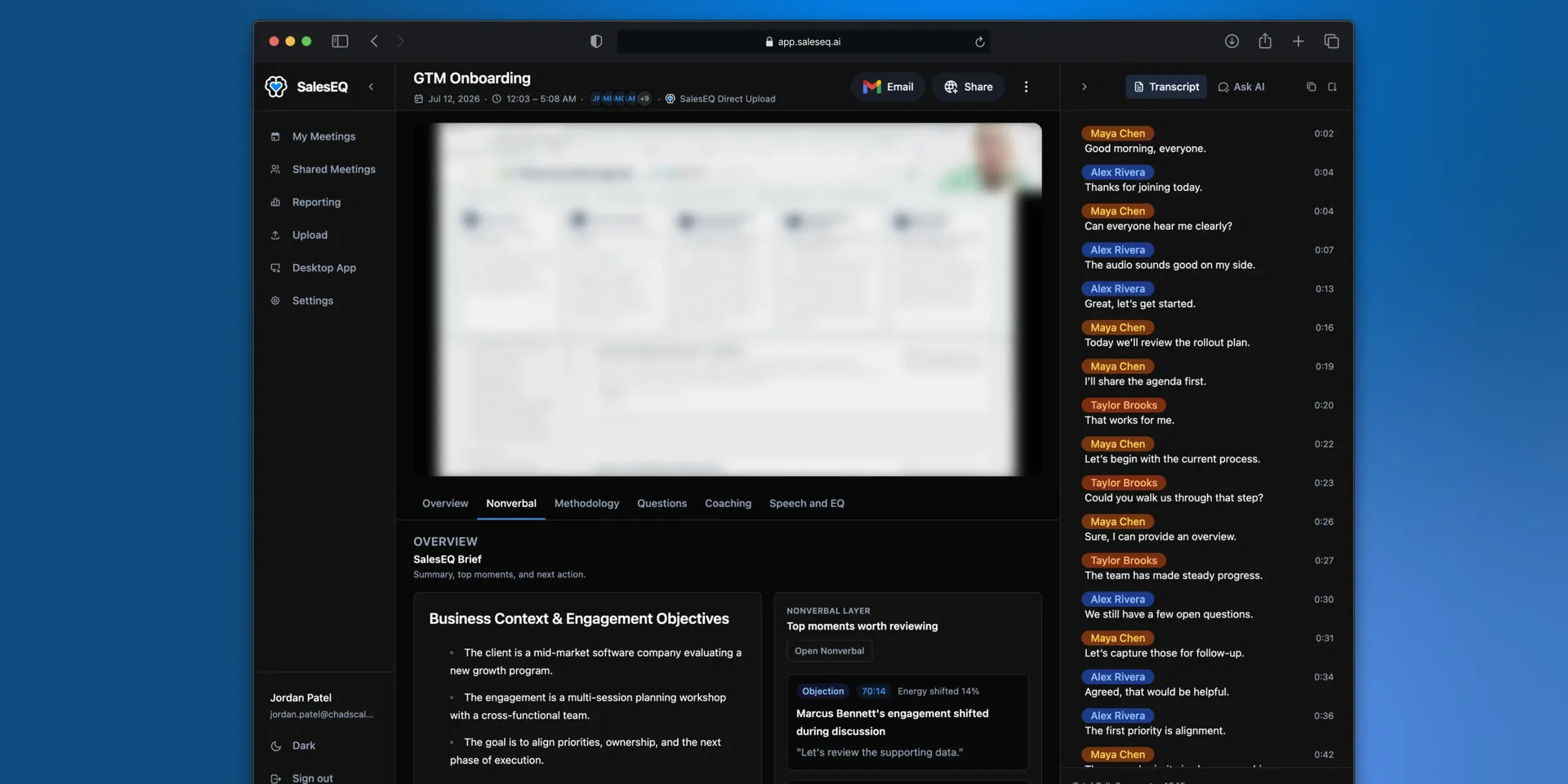
A meeting opens here once it finishes processing. Get to one from the Meetings page, a search result, or a link someone sent you.
The recording and the transcript
A meeting with video plays as video. An audio-only meeting plays as audio, with no picture.
The transcript sits beside the recording, and the two are connected in both directions.
Select any line and the recording skips to that point and plays from there. This is where the time goes. Finding the moment somebody pushed back on price means scrubbing the recording and guessing. Reading for it in the transcript takes seconds, and selecting the line puts you there to hear how it was said.
Playback highlights the line being spoken, wherever you are scrolled to. Turn on Follow along in the transcript header if you want the transcript to scroll itself and keep the current line centered.
Where a meeting came from
The icons after the participant avatars, next to the meeting date, show where a meeting came from. Hover one to read it:
- Platform is where the conversation happened, such as Zoom or Google Meet.
- Source is the tool that recorded it: SalesEQ, or the tool it was imported from.
- Added via is how it reached SalesEQ: a desktop recording, a manual upload, or an import.
The Source column on the Meetings page shows the same thing, and filters on it.
Fixing a title or a speaker name
Both need editor access on the meeting. The owner has it, and so does anyone the meeting was shared with as an editor. Without it the fields are not editable.
The meeting title
A meeting with no calendar event behind it gets a title SalesEQ generates from the conversation. That is usually close, and sometimes it is not what your team would have called it. Rename it so people find it later.
Select More actions next to Share, then select Rename. The title turns into a text field.
A speaker name
A speaker sometimes comes through under the wrong name, or as Unknown speaker 1. Two routes fix it, and either one updates every line from that speaker at once.
From the transcript. Select the name above any line that speaker said. It turns into a text field, so type the right name.
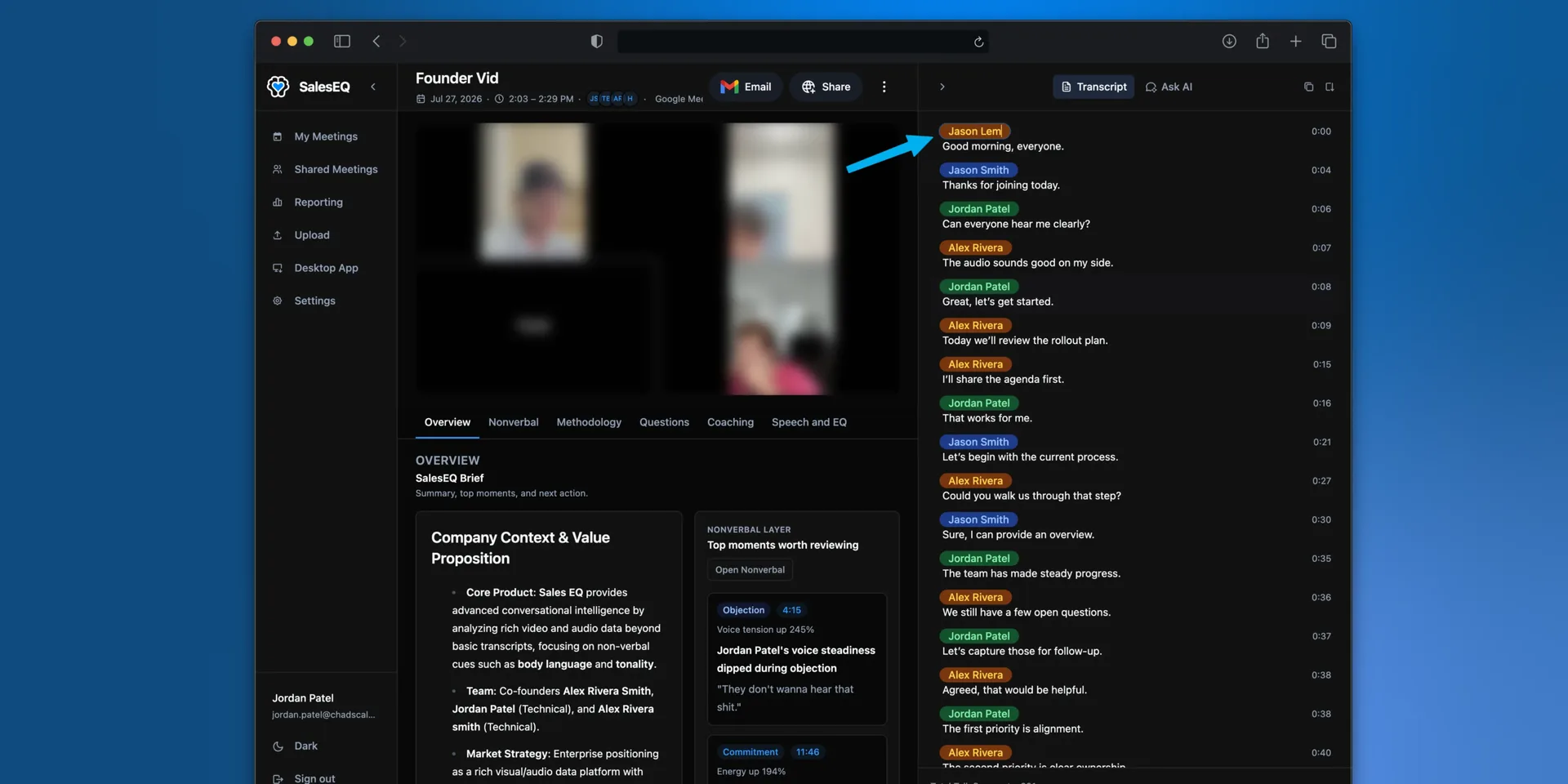
From the participant list. Select the participant avatars next to the meeting date. The list shows everyone SalesEQ knows about, marks the host, and lets you Add participant for anyone it missed.
Do this before you share a meeting, because the transcript is what most people read.
The insight tabs
The tab strip under the recording holds everything SalesEQ generated: the summary, the nonverbal read, qualification evidence, questions, coaching, and the speech metrics. Meeting insights covers what each tab holds.
Asking about the meeting
Rather than reading the whole transcript, ask.
Ask AI sits beside the transcript as its own tab. It answers questions about the meeting you have open and cites the moments it drew from. See Ask AI.
You can also ask from outside SalesEQ. Connect Claude or ChatGPT and put the same questions to your meetings there. See AI assistants.
Taking a meeting somewhere else
More actions next to Share copies the meeting to your clipboard as Markdown, in two sizes:
| Control | What you get |
|---|---|
| Copy meeting details | Title, date, time, duration, platform, participants, the meeting ID, and a link back to the meeting |
| Copy full context | The same header, plus the summary and the full transcript |
Copy full context is for pasting a whole meeting into an AI tool that has no access to SalesEQ. Paste it in, then ask for the follow-up email, the objections you did not answer, or a rewrite of your next call plan.
Copy meeting details is the one to reach for when the tool does have access. Every copy carries the meeting ID, and the SalesEQ connector's tools take that ID. Pasting the details into Claude or ChatGPT points them at the meeting. They pull the transcript, the summary, or a video frame themselves rather than working from what you pasted. See AI assistants.
To do this for several meetings at once, select them in the meetings list and choose Copy meeting details from Actions.
Next
- Meeting insights covers the generated analysis.
- Share a meeting covers getting the meeting to your team.
- AI assistants covers reaching your meetings from Claude and ChatGPT.