Single sign-on (SSO)
Let your organization sign in to SalesEQ through your company's identity provider.
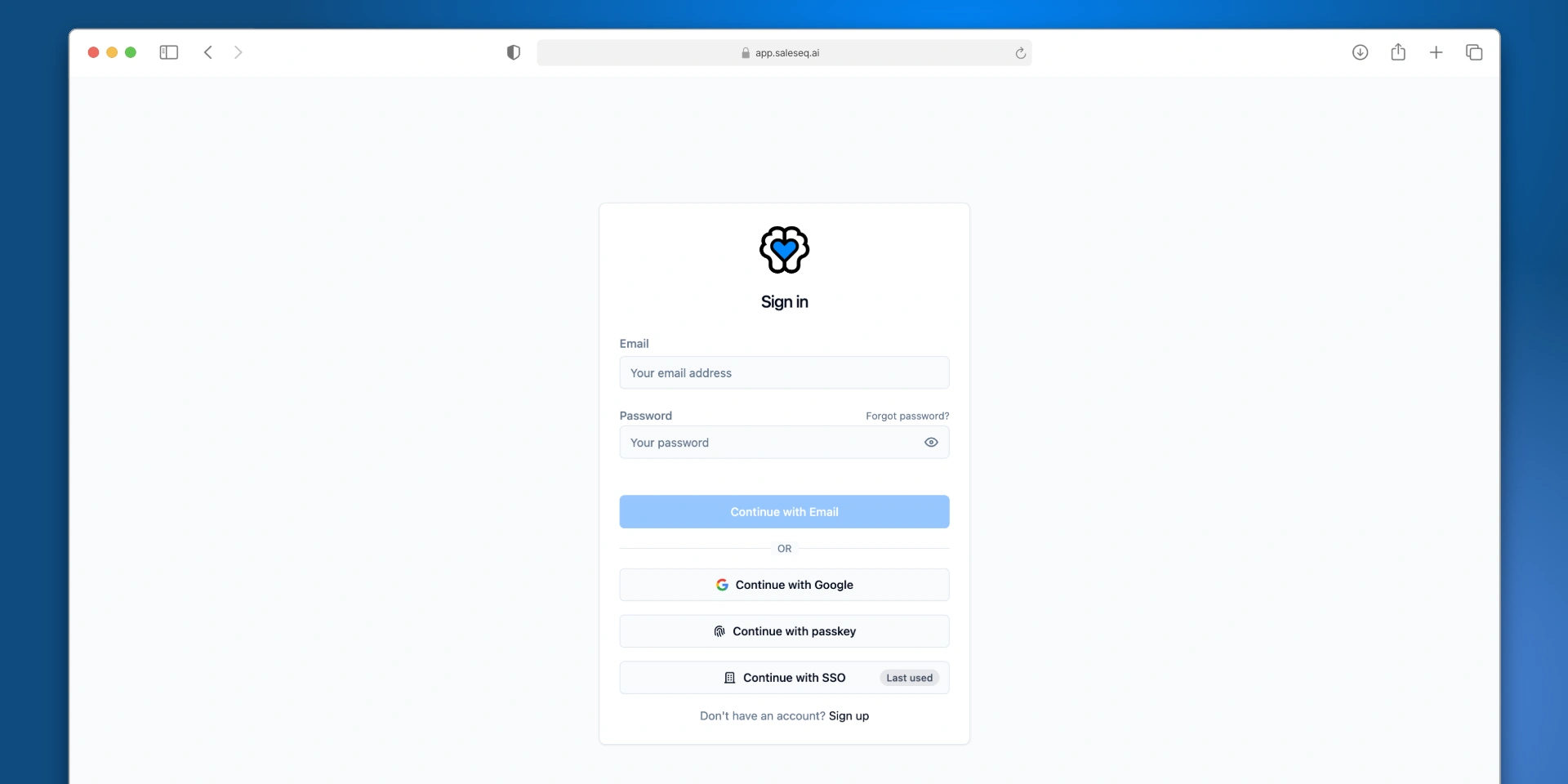
With single sign-on, members sign in to SalesEQ with the account they already use for work, through your identity provider. SalesEQ works with Google Workspace, Okta, Microsoft Entra ID, and any other identity provider that supports SAML 2.0.
This page is for IT administrators. SalesEQ sets up single sign-on with you, and members don't need to do anything until it's on.
Before you start
- Admin access to your identity provider, such as the Google Admin console.
- Every email domain your members sign in with, such as
chadscale.comandchadscale.io. A domain also covers its subdomains, sochadscale.comincludeseu.chadscale.com. - Your SalesEQ Organization ID. In the web app, open Settings, then General under Organization, and select the copy button next to Organization ID.
Set it up
Ask SalesEQ for your sign-in values
Email support@saleseq.ai with your email domains and Organization ID. SalesEQ replies with three values for your identity provider:
| Value | What it's for |
|---|---|
| ACS URL | Where your identity provider sends people after they sign in. |
| Entity ID | How your identity provider recognizes SalesEQ. |
| Start URL | Where the SalesEQ tile in your company's app launcher takes people. |
Add SalesEQ to your identity provider
Create a SAML app for SalesEQ with these settings:
- The ACS URL, Entity ID, and Start URL from SalesEQ.
- Name ID set to each member's work email address, in the
EmailAddressformat. - Attributes named
givenNameandsurnamewith each member's first and last name. Without them, SalesEQ shows the email address as their name. - A signed SAML assertion. SalesEQ rejects a response where only the outer response is signed.
Follow the steps for Google Workspace or other identity providers.
Send SalesEQ your metadata
Download your identity provider's SAML metadata file for the new app. It has to include the sign-in URL and the signing certificate. Email it to support@saleseq.ai, and SalesEQ confirms when the connection is ready.
Turn the app on for your members
In your identity provider, give the people who use SalesEQ access to the app.
Test before you require it
Use a member's account rather than your own admin account:
- Open a private browser window and go to the sign-in page.
- Select Continue with SSO and enter the member's work email.
- Check that they come back signed in to your organization.
- Open the SalesEQ tile in your company's app launcher and check that it signs them in too.
Single sign-on is now optional: members can use it, and their other sign-in methods still work. To make it the only way in, see Require single sign-on.
Google Workspace
In the Google Admin console, go to Apps, then Web and mobile apps, select Add app, then Add custom SAML app.
-
Name the app
SalesEQand continue. -
On Google Identity Provider details, select Download metadata. This is the file you send SalesEQ.
-
On Service provider details, enter:
Field Value ACS URL The ACS URL from SalesEQ Entity ID The Entity ID from SalesEQ Start URL The Start URL from SalesEQ Signed response Leave unchecked Name ID format EMAILName ID Basic Information, Primary email With Signed response unchecked, Google signs the assertion, which is what SalesEQ needs.
-
On Attribute mapping, map First name to
givenNameand Last name tosurname. -
Select Finish.
-
Open the app, select User access, and set it to ON for everyone, or turn it on for the groups that use SalesEQ.
Google says changes can take up to 24 hours, though they usually apply within minutes. Two errors from Google point to the cause:
app_not_enabled_for_user: the app isn't on for that person yet. Check User access.app_not_configured_for_user: the Entity ID doesn't match. Check that it matches the value from SalesEQ exactly.
Other identity providers
Okta and Microsoft Entra ID use different labels for the same settings:
| Setting | Okta | Microsoft Entra ID |
|---|---|---|
| ACS URL | Single sign-on URL | Reply URL |
| Entity ID | Audience URI (SP Entity ID) | Identifier (Entity ID) |
| Start URL | No field. The tile still works. | Sign on URL |
| Name ID | Format EmailAddress, application username Email | Unique User Identifier set to user.mail |
| Names | Attribute statements givenName and surname | Claims givenName and surname, with Namespace left blank |
In Entra ID, check that user.mail holds each member's work email. The default Name ID is the user principal name, which often differs from it.
If your identity provider also sends an email attribute, it has to match the Name ID, because SalesEQ reads email first.
What members see
- Signing in. Members select Continue with SSO on the sign-in page and enter their work email, or open the SalesEQ tile in your company's app launcher. The desktop app signs in through the browser, so it uses single sign-on too.
- Their first sign-in. SalesEQ creates their account and adds them to your organization when a seat is free. If the organization is out of seats, they see Your organization is out of seats and can try again once an admin adds one.
- Existing accounts. Someone who already has a SalesEQ account with that email keeps it and signs in to it. If that account belongs to another SalesEQ organization, it stays there until they leave it.
- People who left. Someone who left your organization or was removed isn't added back by single sign-on. Invite them again from Organization members.
- Two-factor authentication. Single sign-on doesn't ask for a SalesEQ two-factor code, and your organization's two-factor requirement doesn't apply to it. Turn on multi-factor authentication in your identity provider for a second step.
Require single sign-on
Once your test works, email support@saleseq.ai to require single sign-on. It applies to every SalesEQ account with an email at your domains, including any outside your organization.
When single sign-on is required:
- Password and passkey sign-ins go to your identity provider. Continue with Google returns to the single sign-on form, where members enter their work email.
- Other sign-ins end. Everyone at your domains who signed in another way is signed out and signs in again with single sign-on.
- AI assistants reconnect once. Claude, ChatGPT, and other AI assistants connected without single sign-on are disconnected. Each member reconnects through single sign-on, and the connection then stays.
Removing someone
Turning someone off in your identity provider stops new single sign-on sign-ins. It doesn't end a SalesEQ session they already have. While single sign-on is optional, they can also still sign in with a password, Google, or a passkey.
To remove someone, turn them off in your identity provider and remove them from Organization members.
Keep it working
- Signing certificate. Before your identity provider's signing certificate expires, email the new metadata to support@saleseq.ai. Replacing the connection signs out everyone who signed in with single sign-on.
- Status. Admins can check the connection in Settings, then Security, under Organization single sign-on. Each domain reads SAML · Optional, so other sign-in methods still work, SAML · Required for everyone at your domain, or SAML · Not active yet while SalesEQ finishes connecting it.
Next
- Members and roles covers inviting and removing members.
- Two-factor authentication covers sign-ins outside single sign-on.
- Device management (MDM) locks the desktop app to your organization on company computers.