Two-factor authentication
Add a second step to signing in.
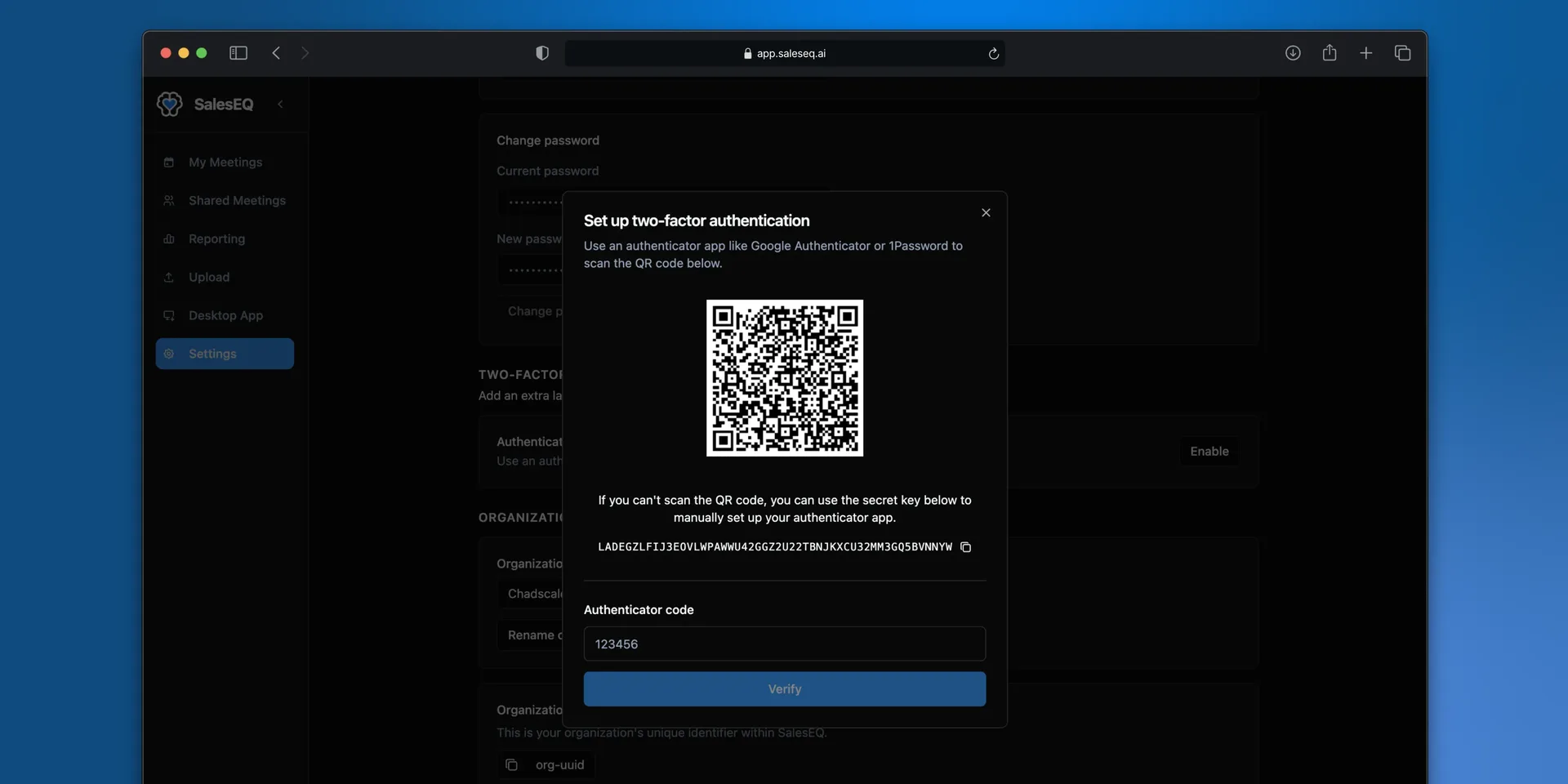
Two-factor authentication asks for a code from your authenticator app after your password. SalesEQ uses time-based one-time codes, so any standard authenticator app works.
Meeting recordings are among the most sensitive things a sales team holds. They contain pricing, roadmaps, and customer conversations. A password on its own is thin protection for that.
If you sign in with Google
This applies to accounts that sign in with an email address and a password. If you signed up through Google or another provider, SalesEQ never sees a password to add a second step to. Manage two-factor authentication in that provider's account settings instead.
Settings tells you which case you are in: the authenticator option names your provider and offers no Enable 2FA button when your account came from one.
This is also why an organization requiring 2FA does not reach you. See Require it across your organization.
Turn it on
Open your security settings
Go to Security, find Personal two-factor authentication, and select Enable 2FA.
Confirm your password
Enter your current password to start setup.
Scan the code
Scan the QR code with your authenticator app, then enter the current code to confirm.
Save your backup codes
SalesEQ shows a set of backup codes once setup finishes. Download or copy them before you close the dialog.
Verify it worked
Sign out and sign back in. After your password, SalesEQ asks for a code from your authenticator.
Add a second authenticator app
Set up another app under Authenticator app points a second app at the same account, which is what saves you when the first phone goes in a river.
Confirm your password and a current code, then scan the new QR code. Both apps generate valid codes from then on, and your existing app and remaining backup codes keep working.
Require it across your organization
Admins can make two-factor authentication mandatory. Go to Organization two-factor authentication and turn on Require 2FA for password sign-ins.
What the policy does:
- Members without 2FA set it up at their next password sign-in. They cannot reach SalesEQ until they finish, and the enrollment screen says the organization requires it.
- Sessions already signed in keep working. The requirement lands the next time somebody authenticates rather than throwing everyone out.
- Nobody can turn their own 2FA off while the policy is on. Settings says so instead of offering the control.
- Somebody joining the organization enrolls first. The requirement is checked before membership is granted.
Third-party sign-ins are exempt. The policy covers passwords, which are the thing a second step protects. Members who sign in through Google or another provider are unaffected, and their second step stays that provider's business. An organization where everyone uses Google gets nothing from this setting.
Turning the policy back off leaves existing enrollments in place. It stops requiring new ones, and members can then disable their own.
Before you finish
Set up your authenticator on a device you will still have next month, and keep your backup codes somewhere you can reach without that device. They are the way back in if you lose the authenticator.
Next
- Members and roles covers who can administer the organization.