Sign-in methods
Sign in with a passkey, Google, or a password, and switch between accounts.
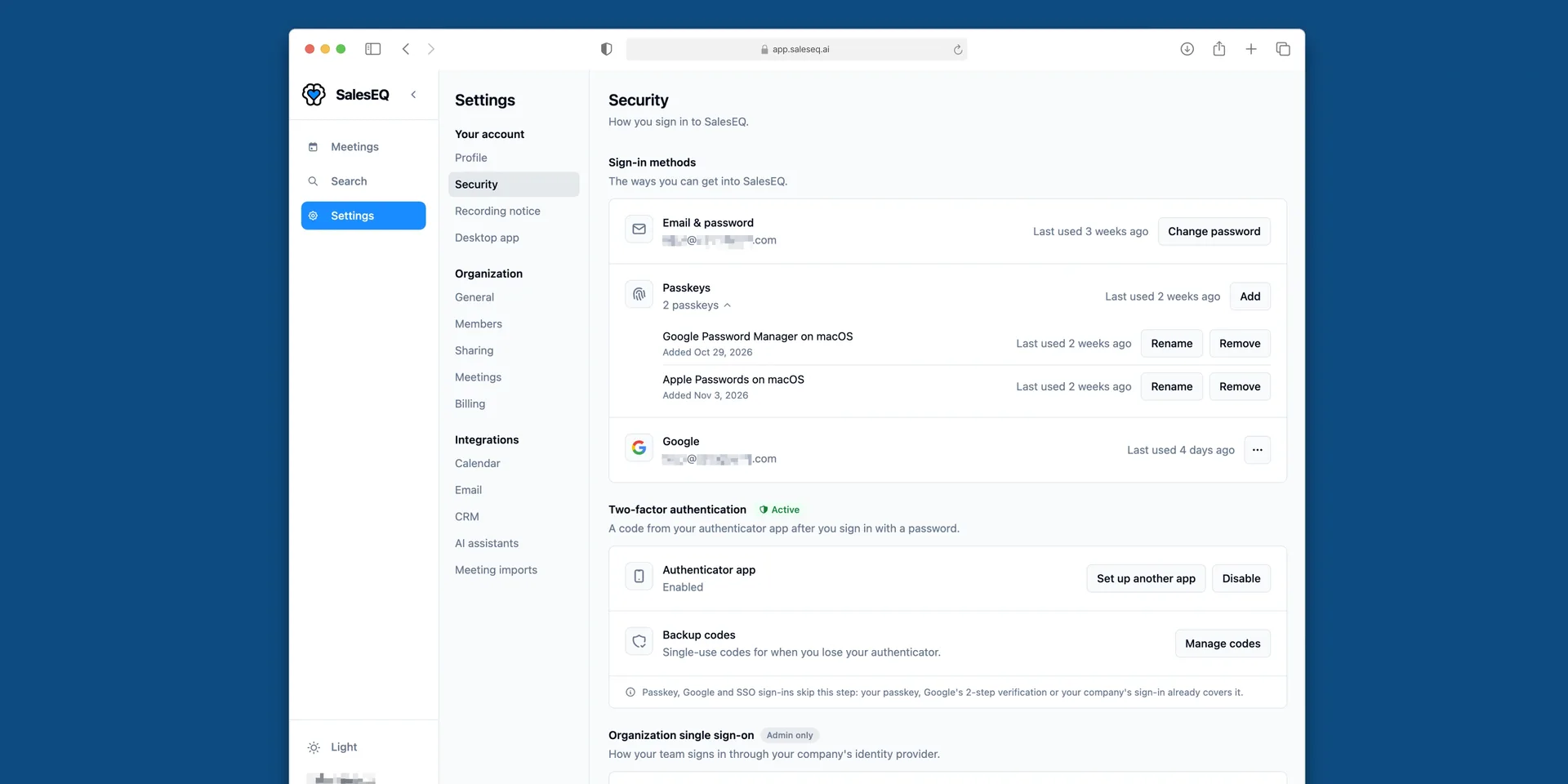
Sign-in methods lists every way you can get into SalesEQ: a password, passkeys, Google, and single sign-on if your organization uses it. Each one shows when you last used it. Find it under Security in the web app's Settings.
If your organization requires single sign-on, you sign in through your identity provider, and Settings doesn't offer the other methods. See Single sign-on (SSO).
Add a passkey
A passkey signs you in with Touch ID, Face ID, or a security key instead of a password. You never type a password, so nobody can phish or reuse one.
Start adding it
Go to Security and select Add next to Passkeys. SalesEQ may ask you to confirm it is you first.
Create the passkey
Select Continue, then follow your browser's prompt to use Touch ID, Face ID, or a security key.
Name it
SalesEQ names the passkey after your device. Select Rename if you want a name that tells your passkeys apart.
To check it worked, sign out and select Continue with passkey on the sign-in page.
If your passkey does not sync through a password manager, add one on each device you use. Select Remove next to a passkey to stop it working.
Google and passwords
- Google. Select Connect next to Google to sign in with your Google account. It has to use the same email as your SalesEQ account.
- Password. If you signed up with Google, select Set password to add a password as well. Otherwise select Change password.
SalesEQ keeps at least one way for you to sign in, so you cannot remove your last one.
Switch between accounts
Stay signed in to up to eight SalesEQ accounts at once, such as accounts in two different organizations, and switch without signing out.
Add an account
Select your account at the bottom of the sidebar, then Add another account, and sign in to the other account.
Switch
Select your account at the bottom of the sidebar again and choose the account you want.
The desktop app has the same menu at the bottom of its sidebar. Sign out leaves the current account, and Sign out of all accounts leaves every one.
Next
- Two-factor authentication adds a code after your password.
- Single sign-on (SSO) lets your organization sign in through its identity provider.