Join your organization
Use an invite link or your work email to join a team already on SalesEQ.
A teammate already set up SalesEQ and invited you. Joining their organization is how you see the meetings your team shares.
You do not choose a plan or enter payment details. Your admin handles billing.
This takes about five minutes.
Before you start
- An invite link from your admin, or a work email address on a domain your team already uses
Open the invite link
Open the link your admin sent you. It looks like this:
https://app.saleseq.ai/invite/33665390-c8f3-434f-b1b3-a18a53922c03The page shows which organization you are joining and which role you get.
The steps below cover the most common path. The page adapts to your situation, so you might see fewer screens than this.
Sign in or create an account
If you are signed out, select Sign in or Create account. SalesEQ returns you to the invite when you finish. New accounts verify their email first.
If you are already signed in, SalesEQ takes you straight to the accept screen.
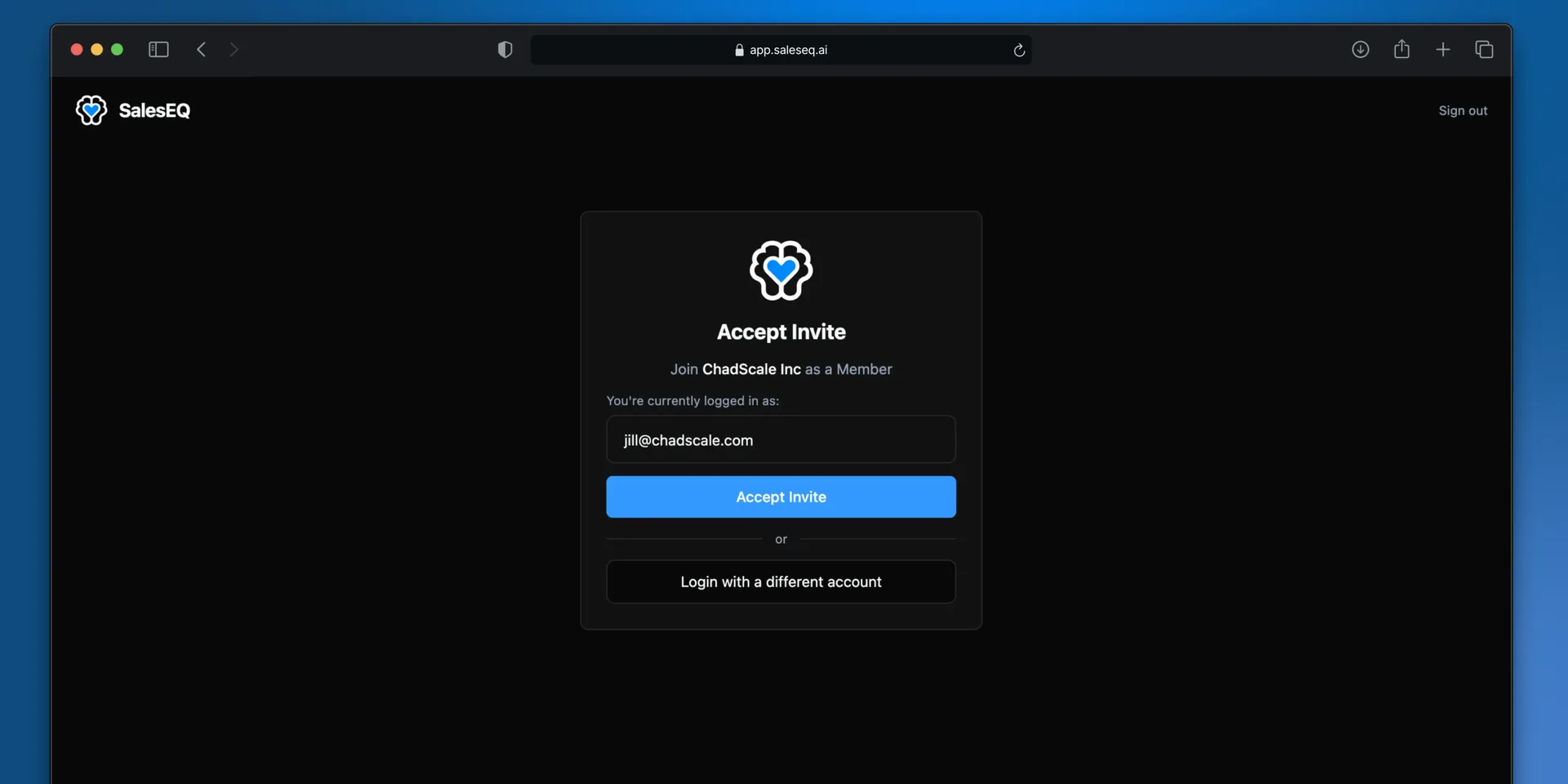
Check the email address on this screen before you continue. That account is the one that joins.
Accept the invite
Select Accept Invite. SalesEQ adds you to the organization and starts setup.
Finish onboarding
Your admin chooses these steps, so they differ between organizations. They can include connecting a calendar, connecting a CRM, downloading the desktop app, and connecting an AI assistant.
You have to finish required steps before you reach the web app. Optional steps have a Skip for now link.
Connect a calendar and an AI assistant now rather than later. Calendar covers what a connected calendar changes about your meetings. AI assistants covers asking questions about them from Claude or ChatGPT.
Two kinds of invite
Invites come in two kinds. The difference is whether you can join from a different account.
An invite sent to your email address works only for that address. If you open it while signed in as someone else, SalesEQ asks you to switch accounts.
An invite from a copied link works for anyone who opens it. The accept screen includes Login with a different account if you are on the wrong one.
Troubleshooting
The invite page explains most problems as they happen. Three of them need action somewhere else.
- Already in another organization. Leave your current organization under Organization members first. An account belongs to one organization at a time.
- Organization full. Your admin is out of seats. Select Notify admin to email them.
- Expired, revoked, or already used. Ask your admin for a new link. An invite sent to a single address works once.
Join from the setup screen
Sign up at app.saleseq.ai/sign-up, select Join an existing organization, and paste the same invite link.
Both routes end in the same place. Opening the link directly takes fewer steps.
Join with your work email
If your admin turned on email domain auto-join, sign up with your work email and verify it. You land in your company's organization without an invite, because your email domain matches.
If you expected this and reached the organization setup screen instead, ask your admin for an invite link.
Verify it worked
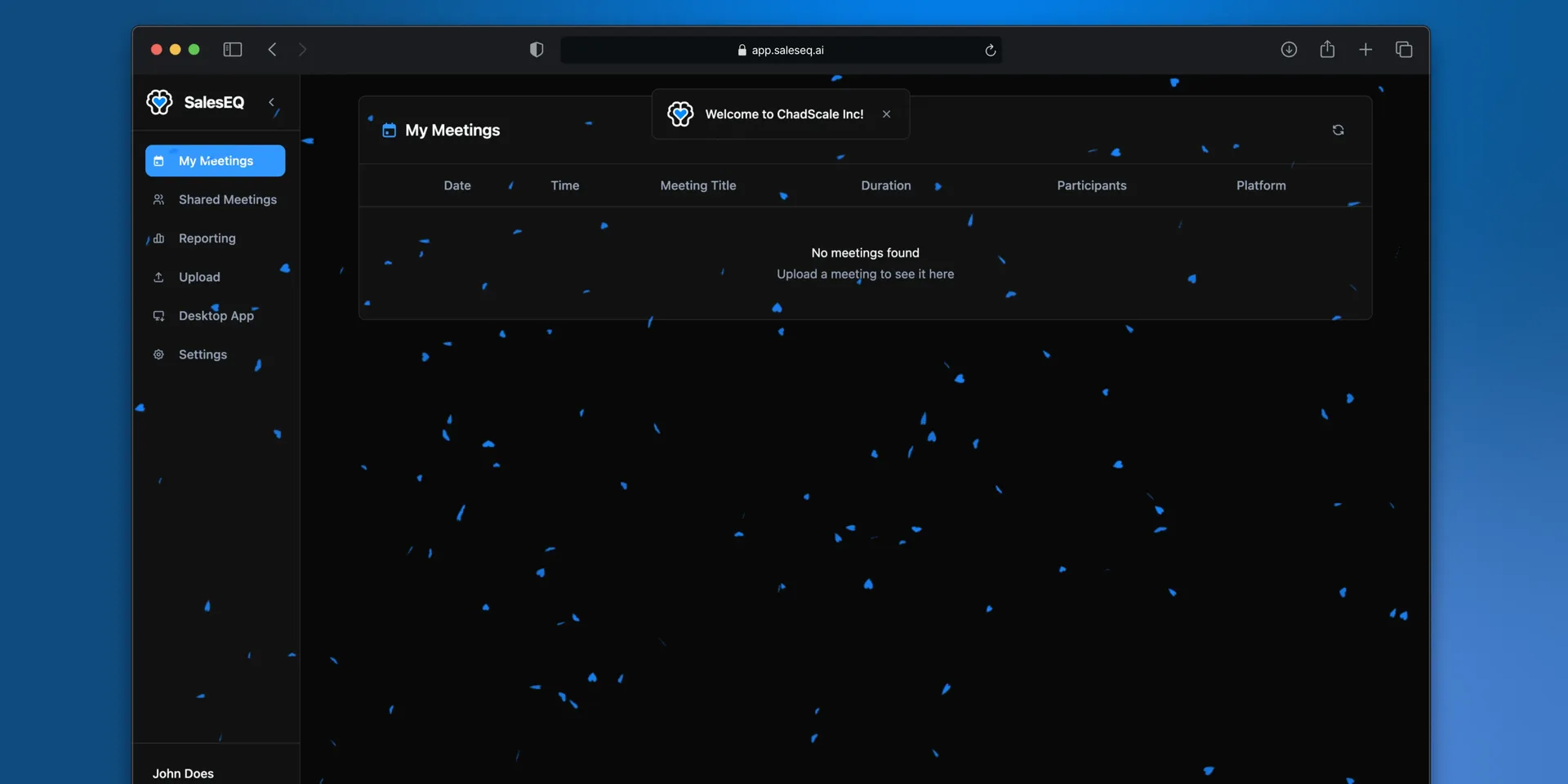
You land on Meetings, and a welcome message names your organization.
My meetings fills up when you record or upload something. All meetings also includes meetings a teammate shares directly with you or with a group you belong to.
Next
- Record your first meeting gets a real meeting into SalesEQ.
- Concepts explains meetings, sharing, and groups in eleven short sections.
- Share a meeting covers getting a meeting in front of your team.